Email layout
Every email your school sends (enrollment and booking confirmations, reminders, messages from the Messages section, account emails) is shown inside the same frame: a header with your logo, the message, and a footer with your contact details. You can choose how that frame looks.
Choosing a layout
Go to Settings → Appearance → Email layout and pick one of:
| Layout | What it looks like |
|---|---|
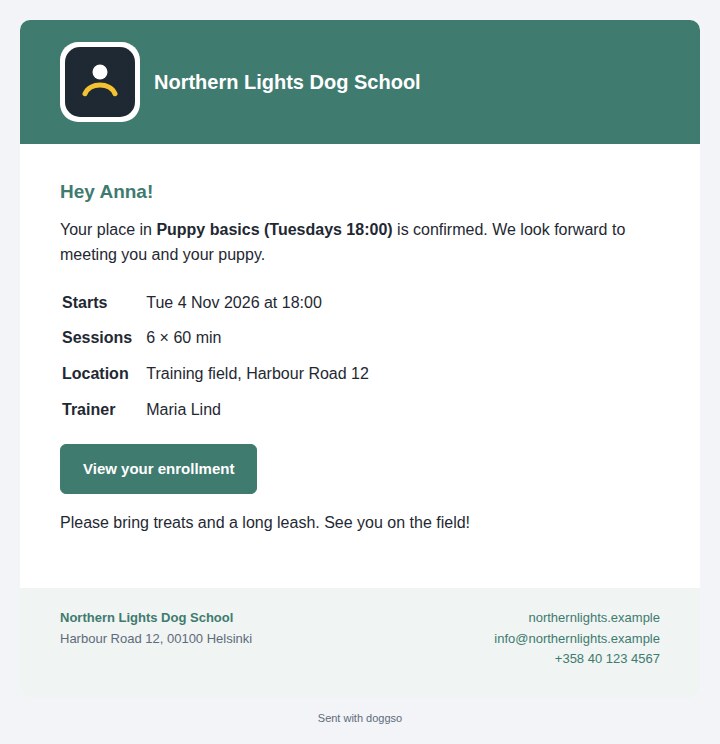
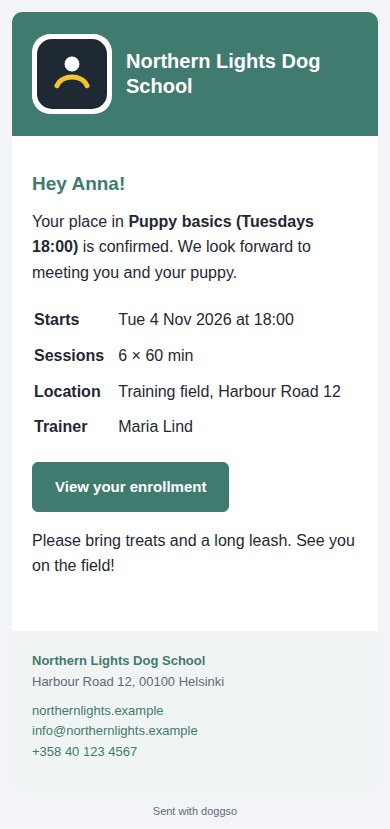
| Banner (default) | A header band in your school colour with your logo and name, the message on white, and a light footer with your address and contact details. |
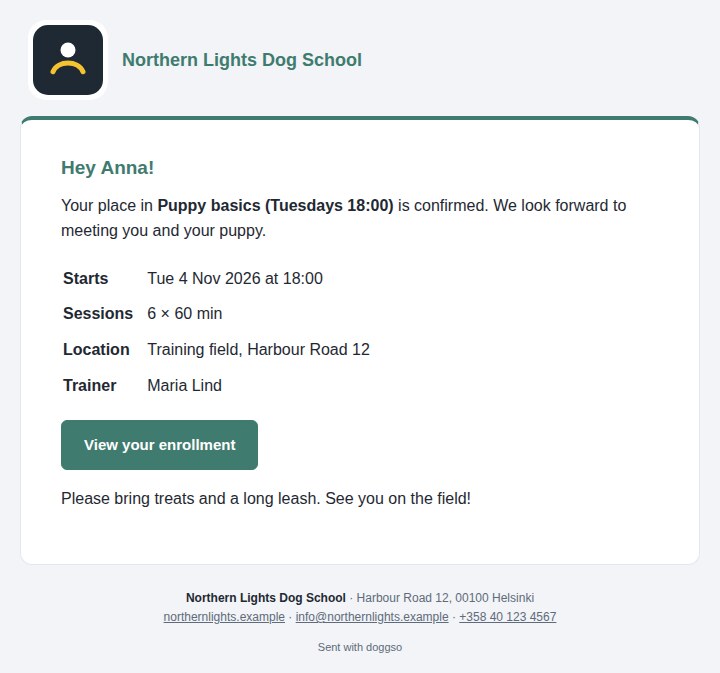
| Card | Your logo and name above a white card on a light grey background, with a thin line in your school colour. The footer is under the card. |
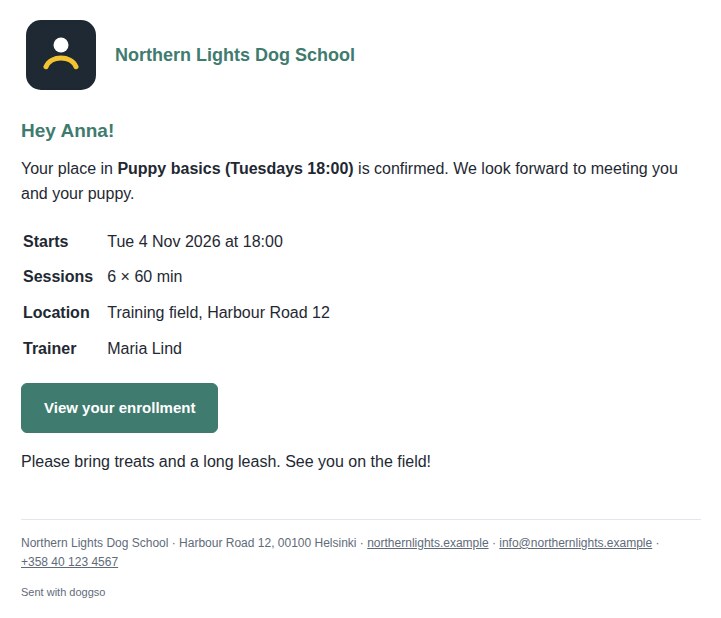
| Letter | No frame: your logo and name, the message on white and a one-line footer. Reads like a personal email. |
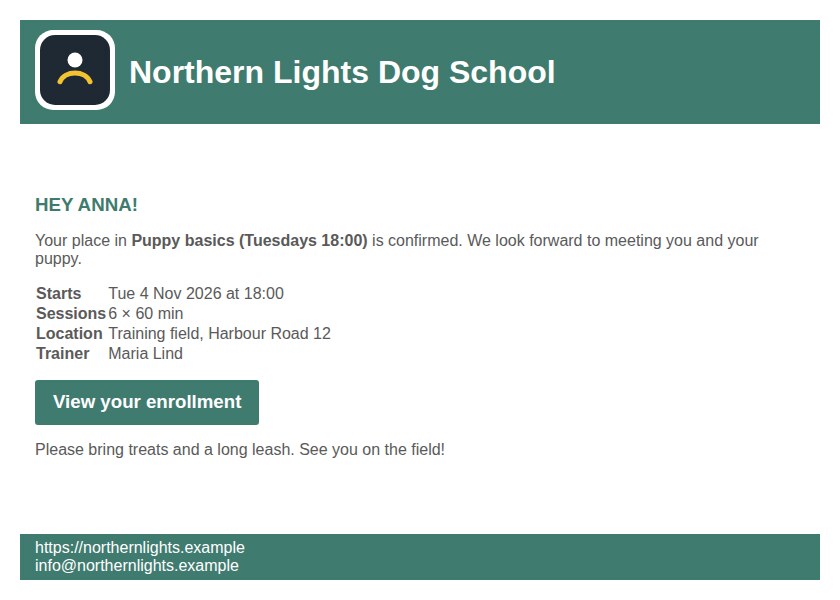
| Classic | The previous look. It also follows the email header settings below, so it shows your logo when one is set. |
Under the setting, the Preview links open a sample email in each layout with your colours, logo and footer, so you can compare them before saving.
What the layouts look like
The same enrollment confirmation in each layout (example school, theme deepteal):
Banner (default)
Card
Letter
Classic (the previous look)
On wide screens Banner, Card and Letter are up to 680 px wide; on a phone they use the full screen width and the footer columns stack:
What goes into the frame
- Header: an image and a text, set under Settings → Appearance:
- Email header image: usually your logo. If it is empty, the logo of the page navigation bar is used, else the Logo URL. It is shown 80 px tall: upload a PNG or JPG (not SVG) of about 160 px height and under 100 KB under Administration → Files with public access, and paste its URL. In Banner and Classic it sits on your theme colour, in Card and Letter on white, so a transparent PNG that works on both, or a logo with its own background, looks best.
- Show an image in the email header: switch the image off if you only want text.
- Email header text: leave empty for the school name, write
-for no text (useful when your logo already contains the name), or write your own text.
- Name colour in Banner: white on your theme colour; only really light theme colours get dark text.
- Footer: your school name, address, website, email and phone, as filled in under the school’s basic details, and a small “Sent with doggso” line.
- Colours: your theme’s colour. When text on it would be hard to read, the app uses dark text, or a slightly darker shade of the colour, automatically.
- Inbox preview: the first sentence of the message is shown next to the subject in most inboxes.
The new layouts use the standard fonts of each device and show headings as written (Classic shows them in capitals). Emails sent with the As is layout of the HTML editor are not affected.